
IIS: Sửa lỗi encrypted using a modern cipher suite trên Chrome
Bạn vui lòng làm theo hướng dẫn sau để khắc phục:
Update – 2.2.2016 – The ciphers originally listed in this post no longer work to fix the obsolete cryptography warning as Google has upped the requirement from DHE with AES_128_GCM to ECDHE with AES_128_GCM or CHACHA20_POLY1305. The only ciphers we have on Windows that are close to this requirement are all ECDHE-ECDSA which will require an ECC (Elliptic Curve Cryptography) certificate to be used vs ECDHE-RSA which requires a certificate signed with the standard RSA key algorithm.
To get an ECC certificate, the CSR for the certificate has to be
generated with ECDSA as the key algorithm (rather than RSA 2048 or
4096). If you do have one of these certificates you can then use the
steps in this post to bump the following cipher suites to the top to
satisfy the obsolete cryptography warning:
TLS_ECDHE_ECDSA_WITH_AES_128_GCM_SHA256_P521
TLS_ECDHE_ECDSA_WITH_AES_128_GCM_SHA256_P384
TLS_ECDHE_ECDSA_WITH_AES_128_GCM_SHA256_P256
I have an updated post about acquiring an ECC certificate and steps needed to implement the ECDHE_ECDSA ciphers here:
IIS 8 with ECC certificates – increasing your SSL Security on Windows Server 2012
If you have a regular certificate signed with RSA like most are, I would go with the settings mentioned in this post:
Hardening SSL & TLS connections on Windows Server 2008 R2 & 2012 R2
This post is going to be a quick and simple tip that should work on IIS 7 and IIS 8 to fix the “Your connection to somedomain.com is encrypted with obsolete cryptography.” warning that recently popped up in Google Chrome seen below:
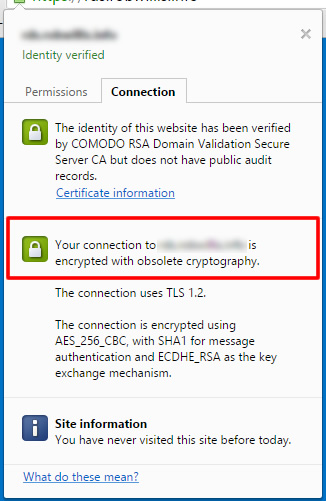
Before we can fix it, we need to make sure that the following patch is installed from MS14-066:
KB2992611
Which adds support for the following cipher suites:
TLS_DHE_RSA_WITH_AES_256_GCM_SHA384
TLS_DHE_RSA_WITH_AES_128_GCM_SHA256
TLS_RSA_WITH_AES_256_GCM_SHA384
TLS_RSA_WITH_AES_128_GCM_SHA256
Note as the KB mentions there were quite a few issues reported with this patch, so be sure to test before you put it in production and have a roll back plan in place.
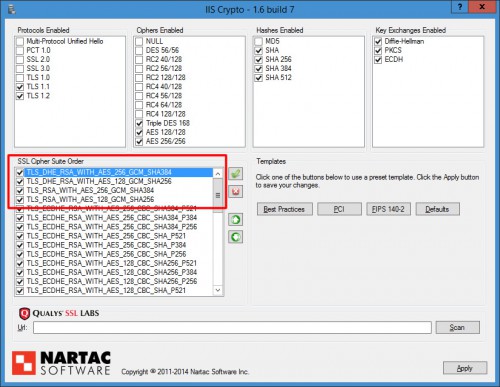
Once the patch is installed, we will need to download IIS Crypto from Nartac Software and then follow these steps:
- Open IIS Crypto and apply the “Best Practices” template
- On the bottom left in the Cipher Suite Order box find and move the
following cipher suites to the top of the list and make sure they are
now checked (screen shot below):
TLS_DHE_RSA_WITH_AES_256_GCM_SHA384
TLS_DHE_RSA_WITH_AES_128_GCM_SHA256
TLS_RSA_WITH_AES_256_GCM_SHA384
TLS_RSA_WITH_AES_128_GCM_SHA256 - Uncheck TLS 1.0 under Protocols Enabled (optional but recommended on 2008R2/12/12R2)
- Reboot the server and test in a new browser window, preferably an incognito/private one, otherwise you may need to clear your browser cache to see the changes.
IIS Crypto settings:
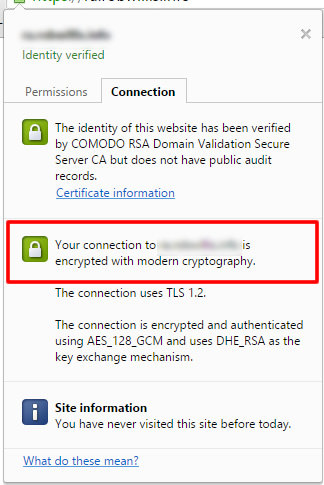
And Chrome now shows that we are using Modern Cryptography:
Hope this helps!
Nguồn: http://robwillis.info/2015/05/fix-obsolete-cryptog...
Xử lý sự cố khác
Lỗi NET::ERR_CERT_AUTHORITY_INVALID trên điện thoại Android cũ: thiếu chứng chỉ ký chéo (cross-sign)
Lỗi Microsoft IIS: Chứng chỉ không được tin cậy rộng rãi do thiếu đường dẫn chứng chỉ (Certificate Path) hợp lệ
Cần làm gì khi một Root CA hết hạn hoặc cập nhật
Yubikey: Ký mã ClickOnce bằng chứng chỉ được lưu trữ trên Yubikey
Gemalto Safenet eToken 5110CC (940): Làm thế nào để mở khóa (đặt lại mật khẩu)
Lỗi: Verify return code: 21 (unable to verify the first certificate)
Zimbra: Lỗi chdir(/root) failed: Permission denied
Signtool: Lỗi No certificates were found that met all the given criteria
Cài đặt SSL thành công nhưng Google hoặc Facebook báo lỗi
Windows: Bản vá bổ sung Trusted Root Certificates
Windows: Tự động cập nhật Chứng chỉ gốc - Trusted Root Certificates
Chrome lỗi ERR_CERT_AUTHORITY_INVALID trên Windows 7
Zimbra: Xử lý lỗi Root CA Certificate Expiration
Cpanel: Root CA Certificate Expiration
Comodo/Sectigo: Lỗi Root certificate has expired
Hướng dẫn cập nhật Root / Intermediate CA trên Linux Server
Comodo/Sectigo: Lỗi Root certificate has expired
Lỗi: Windows does not have enough information to verify this certificate
Windows Server 2012: Hướng dẫn cập nhật máy chủ hỗ trợ TLS 1.2
Windows Server 2008: Hướng dẫn cập nhật máy chủ hỗ trợ TLS 1.2